



Migal Calendar – A simple calendar plugin
A simple, lightweight calendar plugin to leave event memos directly from the WordPress admin dashboard and display them on the front-end.
What is Simple Calendar?
Migal Calendar is a clean, minimal calendar plugin for WordPress. It provides an intuitive interface in the WordPress admin area to quickly click on any date, type a memo or event note, and save it instantly via Ajax.
The saved memos can easily be displayed on the front-end of your site using a shortcode.
Features
- Simple Admin Editor
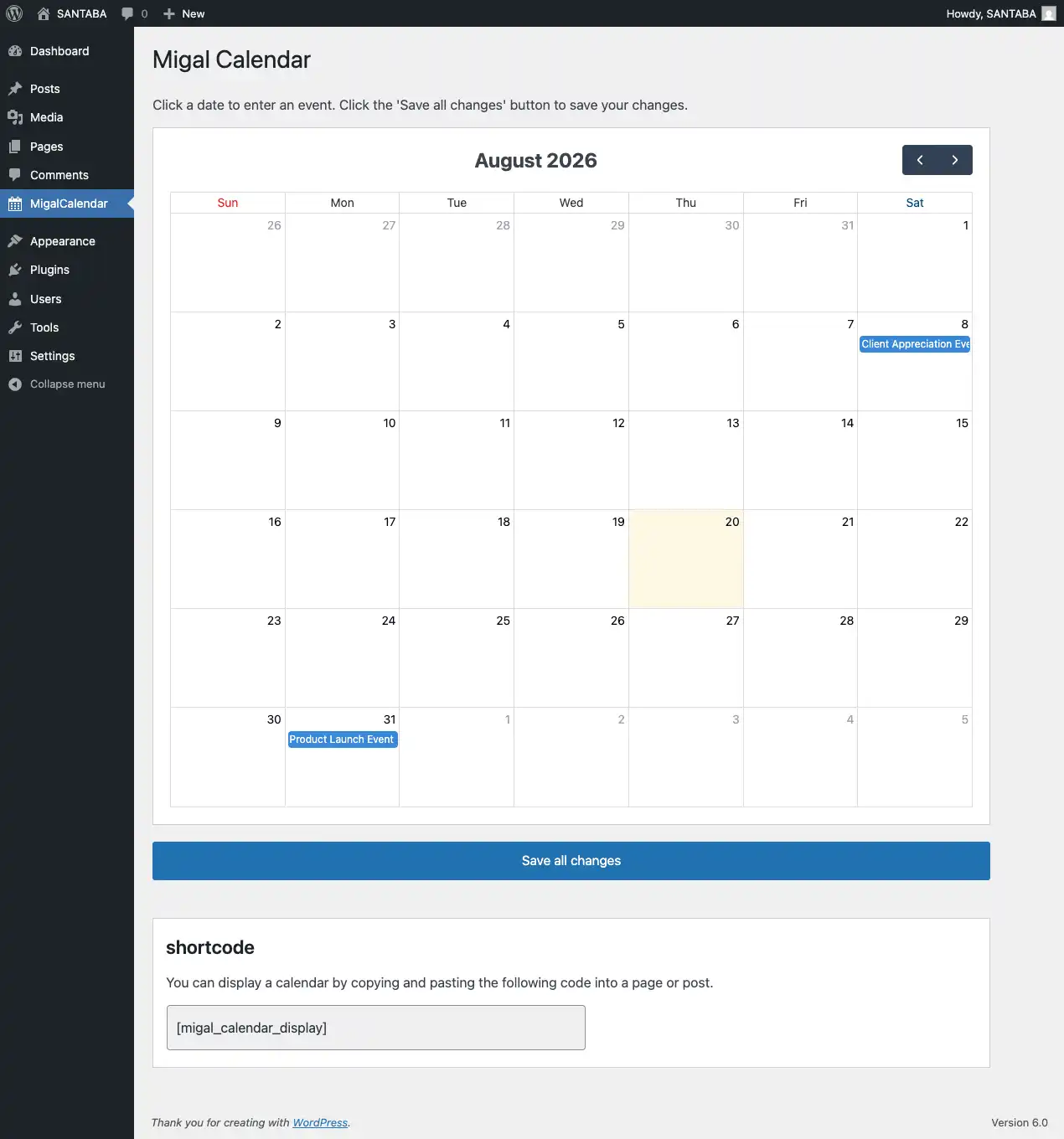
Click any date in the admin calendar to add, edit, or delete memos. - Ajax Powered
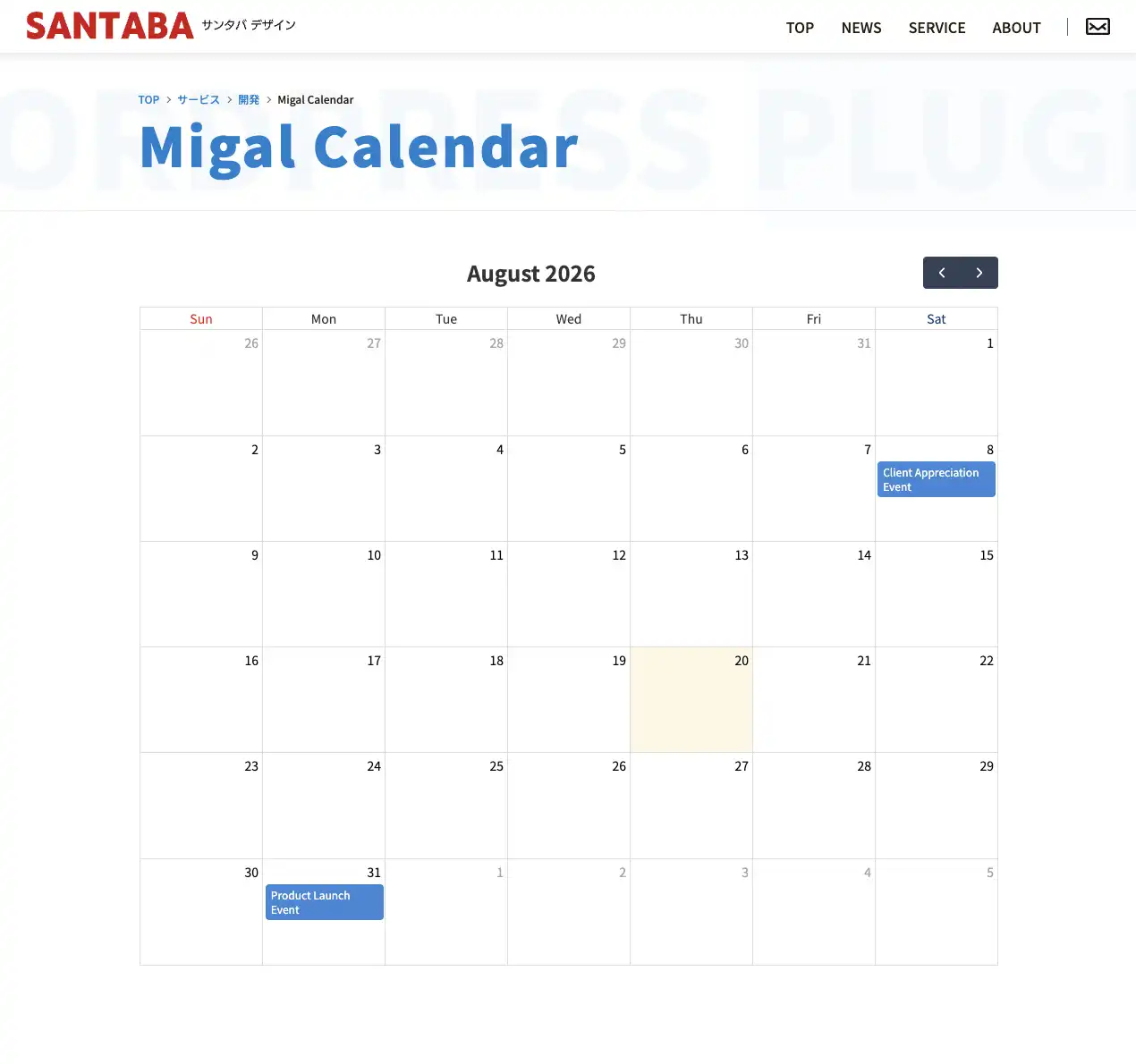
Save all your changes seamlessly without full page reloads. - Front-end Display
Show your calendar and events cleanly to your site visitors. - Lightweight & Fast
Built on top of FullCalendar with no unnecessary bloat. - Translation Ready
Fully internationalized and ready for localization.
Screenshots
WordPress Admin Panel
Front-end View
Usage
Once activated, a "Migal Calendar" menu will appear in the WordPress admin panel. Go to this "Migal Calendar" menu to configure your calendar events.
To display the calendar on your site, simply add the shortcode to any post or page.
shortcode
[migal_calendar_display]Installation
- Upload the `migal-calendar` folder to the `/wp-content/plugins/` directory, or install the plugin directly through the WordPress plugins screen.
- Activate the plugin through the 'Plugins' screen in WordPress.
- Go to **Migal Calendar** in the WordPress admin menu to start adding memos.
- Use the shortcode `[migal_calendar_display]` on any page or post to display the calendar on your front-end.
- From the WordPress administration screen, click Add New under the Plugins menu to open the Add Plugins page.
- Type "Migal Calendar" into the search box and search for it. When you find the plugin, click Install Now.
- Once the installation is complete, click Activate Plugin.
- Go to MigalCalendar in the WordPress admin menu to start adding memos.
- Use the shortcode [migal_calendar_display] on any post or page to display the calendar on your site.
Requirements
- WordPress 6.0 or higher
- PHP 7.0 or higher

 ご相談・お問い合わせはこちら